Tuesday, December 13, 2011

Color Display of Worksharing


The “Worksharing Display Settings” is a tool to help you display a view in your model based on Worksharing status. This is a relatively unnoticed addition to Revit in 2012. The tools can be accessed in the View display tools in the bottom left corner of a view after a project has been Workshared. See Image above for example.
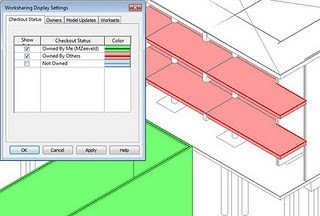

This tool is a way to color display some critical information about the current view related to Worksharing. There are four settings: Checkout Status, Owners, Model Updates and Worksets. The Colors can be changed for each topic for a more desirable look. See image below for example.

Tuesday, November 22, 2011

Applied Software Blog

I'll be contributing blog entries to Applied Software's Blog...
Covering information, news, techniques and critiques from Applied Software's technical and sales team.

Tuesday, October 25, 2011

Micro Application Packages Limited (MAP Software)

Autodesk Acquires Micro Application Packages Limited. This acquisition Helps Extend Building Information Modeling Across the Building Lifecycle Beyond Design to Support MEP in the BIM environment.

Link to article: http://www.marketwatch.com/story/autodesk-acquires-micro-application-packages-limited-2011-10-20

Monday, October 24, 2011

Autodesk AREA App

Autodesk's AREA has a new app for Droid and Apple devices.

This mobile device collects resources for news, information, tutorials specifically for TV and film industry.

Here is the link below:

http://area.autodesk.com/forum/autodesk-area-mobile/general-discussion/download-the-area-mobile-app/

Monday, October 10, 2011

In Canvas

In Canvas is a viewport control for View, Viewport, and Visual Styles. If you have used 3ds Max before, this feature will look familiar. It has been in 3ds Max for several releases. But will be very helpful in AutoCAD to have the same kind of functionality.
Located in the upper left corner of each viewport, this is a quick access tool to change settings within the viewport. See image above.

Tuesday, September 20, 2011

Project Folder

Project folders in 3ds Max are a great helpful tool! By setting the project folder, this allows 3ds Max to search or look in the folder of that project directory. This works well for when other people are working on a project with you or if you have to come back to a project after a few weeks. Setting the project active re-paths the search folders in 3ds Max to look for presets, scenes, import/export and other project specific folders.
Found under the Application big "M", and then Manage setting the folder is easy either to an existing folder or creating a new one.

Friday, September 16, 2011

Content Explorer

Have you checked out the Content Explorer in AutoCAD and AutoCAD Architecture (ACA). It is pretty cool. It can be accessed from the Plug-ins Tab in AutoCAD or the Add-ins tab in ACA, both look like binoculars.
With Content Explorer you can catalog content for speedy access, index the objects in each file, and search for content in local drives, network locations, and the Autodesk Seek.
Click on the side image for a better look.